Lime CRM Product Updates

Read up on the latest features and improvements!

Nov 20, 2026

πŸ“§ Mail Add-in: save emails from Outlook to any card in Lime CRM

The new Mail Add-in lets you save emails from Outlook to any card in Lime CRM – a deal, a project or an agreement – with formatting, images and attachments intact. It’s now available for all Lime CRM Cloud customers. Example: Saving a customer email and its attachments to Lime CRM, straight from Outlook. News in short Save to any object: deals, projects, agreements or any other card, not only companies and persons. The same form as in Lime CRM: search for objects, create new ones on the spot and fill in required fields before you save. The whole email comes along: formatting and inline images are kept, and a copy of the original email can be saved alongside. You choose the attachments: pick which files to save as documents. No double saves: reopen a saved email and you see when it was saved, with a link to it. Sent emails and reminders: save from the Sent folder, and tick a box to get a follow-up reminder. For administrators More secure, less to manage. The add-in no longer relies on separate API users or tokens. Each user connects Outlook to their own Lime CRM login once, and there is nothing for IT to hand out or renew. Your IT department deploys the add-in through Microsoft 365. Out of the box, emails are saved as History. To fit it closer to how you work, you can choose another object type in Lime Admin, decide which fields hold the subject, body and sender, set default values for received and sent emails (useful for driving automations), and design a card variant for emails. If you use Live Docs, set up Selective File Storage first, so saving stays fast. Good to know New Outlook, Outlook on the web and mobile: classic Outlook is not supported. On mobile, attachments are not available. Emails only: for now, calendar sync stays on the current add-in, and both can run side by side. One email at a time: replies are saved one by one, not as a thread. The Mail Add-in replaces our previous mail add-in for saving emails. Try it Talk to your Lime contact person to get the Mail Add-in for your Lime CRM Cloud solution. πŸ‘‰ Read more about the Mail Add-in β†’ For the technically curious, the Mail Add-in documentation covers requirements, configuration, deployment and GDPR.

Web clientNov 13, 2026

βœ… Dynamic Checklist v5: A New Builder and Actions That Always Run

The new Checklist Builder, where each group of steps has its own colour. Dynamic Checklist guides your team through a process one step at a time, right on the ticket. Version 5 gives you a new Checklist Builder that makes even large processes easy to build and change. Steps can now take care of their own work when they are checked, and everyone in your organisation can open your checklists to see how your processes run. Version 5 is for the Lime CRM web client. If your team works in the desktop client, you can stay on version 4. We keep maintaining it and fixing issues, so your checklists keep working. A new Checklist Builder The new builder is made for real processes, from a handful of steps to large checklists with many branches. Two views of the same process The compact view shows the shape of your process at a glance, with all its steps and branches from start to finish. Switch to the detailed view to see each step with its description and actions, so you can review the whole process without opening one step at a time. Each group gets its own colour, so you can see where one part of the process ends and the next begins. Zoom and search help you find your way in large checklists, and the full preview lets you click through the checklist the way your team will. The same checklist in the detailed view, with each step's description and actions Every change saved, and easy to undo Whenever you save, the builder keeps a version with who made the change and when. Open an earlier version and compare it with the current checklist to see exactly what changed. If an edit went wrong, press Restore this version to bring the earlier version back. The restore is saved as a new version, so the version you replaced stays in the history too. You can improve your processes with confidence and go back if you need to. At the top, the list of saved versions with who saved each one. Below, an earlier version compared with the current checklist, with the change highlighted and Restore this version one click away Settings that say what they do The settings are written in plain language instead of database wording. "Set Properties When Activated" is now "Set field values when the item becomes active", and a short explanation sits next to each setting. You can build a step without guessing what a field means, and without asking someone who knows the old names. Clearer instructions for your team Item descriptions support formatting such as lists, links and bold text, so a step can hold a proper instruction instead of a single line. Each checklist can also have its own description, which your team opens from the top of the checklist. Steps that make sure the work gets done A checklist item can now run actions the moment it is checked, and it is only checked once those actions are done. The important parts of your process always happen. Create the work order as the step is checked. Your team no longer has to remember to press a button. Ask for the right information at the right time. On a step like "Book technician and fill in desired service date", a form opens, and the step stays unchecked until the date is saved. The actions are standard actions, the ready-made actions used across Lime CRM, such as creating a record, opening a form or updating fields. You pick them from a list in the builder, with no custom code. They also work as buttons on a checklist item that your users can choose to press. On the left, a step set up to open a form with the service date as a required field. On the right, checking that step on a ticket opens the form Everyone can read your processes Your checklists describe how your organisation works, so everyone should be able to read them. With version 5, anyone can open a checklist in read-only mode, straight from the checklist on a ticket. They see it the same way the people who build it do, in the compact outline, the detailed view and the full preview. Every step and setting is visible, and nothing can be changed. Viewing is open to everyone by default. You can limit it to chosen groups, and you decide who can edit. New colleagues can learn a process from the real thing, and teams can discuss improvements based on how the work is actually set up. The checklist becomes your process map, always up to date, with no separate documents to maintain. A checklist opened in read-only mode Find the checklist from the ticket type A ticket type can show a card with the checklist connected to it. Anyone can see which process that ticket type follows, and the people who build checklists open it straight from there. For existing installations this need to be added manually. How to get version 5 Version 5 is available now. If you already use version 4 in the web client, upgrading includes a few changes to your setup, and our Expert Services team will help you with it. Get in touch with your contact at Lime to get started or to plan your upgrade. See how it works in the Dynamic Checklist documentation.

Nov 3, 2026

❀️ Let Your Team Leads Share Filter Sets and Layouts

Until now, only administrators could publish a filter set or a table layout for everyone to use. If a sales manager built a useful list of open quotes for the team, they had to ask an admin to publish it. You can now choose which groups are allowed to publish. Members of those groups can share, update and remove filter sets and layouts for the whole organisation, and the administrator group always keeps that right. Save for yourself, publish when it's ready When you save a new filter set, it's private by default. Tick Publish filter set when you want everyone to see it. Layouts work the same way: Save for myself keeps your changes to yourself, Publish shares them, and Reset takes you back to the published version. This also helps administrators who work in Lime CRM day to day. You can keep your own filter sets and layouts without changing what everyone else sees. How to set it up Administrators page: open Settings and choose Users & Access Navigate to Permissions > Filter sets & layouts and add the groups that should be able to publish. Availability This is currently being rolled out to everyone using Lime CRM in the cloud. If you run Lime CRM on your own servers, it comes with the next release. Read more about ++filter sets++ and ++publishing layouts++ in the documentation.

Oct 28, 2026

πŸ–ΌοΈ Say Hello to Faces and Logos in Lime CRM

No more scrolling past a wall of identical grey icons trying to figure out which company you're looking for. Companies in Lime CRM now show up wearing their own logo, and your coworkers show up as with their faces. What's new: Company logos and coworker photos now appear throughout Lime CRM. Company logos are pulled from the website already saved on the record; coworker photos come from the profile picture already stored in Lime CRM. Why it matters: Finding the right record in a long list becomes something you can see instead of something you have to read β€” especially useful when you're choosing between three companies that all start with the same word.

Oct 6, 2026

πŸ–ΌοΈ Paste images straight into notes in Lime CRM

Now you can paste images straight into notes in Activities. Paste images into activity notes Copy an image, for example a screenshot, and paste it into the note. The image lands in the text where your cursor is. You don't need to configure anything. Use it on other text fields Administrators can turn on the same feature for text fields on cards. Rich text with images works well in fields where someone describes something for another person to read, such as a description, a background or notes. Using it for Text Snippets is highly recommended. Fields that hold a value are a different case. If you filter on the field, group by it, show it as a column in a list or use it in an automation, keep it as plain text. Formatting and images in those fields make the data harder to work with. How to turn it on In Lime Admin, add this configuration to the text field: Web component: limebb-text-editor Property: "allowPasteImages": true

Oct 1, 2026

πŸš€ Workflows Is Out of Beta β€” Now You Can Build Yourself!

Back in May, we launched Workflows in Lime CRM as a beta program. The feedback has been great, and the flows our beta customers are running every day have shown us exactly what we hoped: this is the tool for reclaiming your time. So it is time to take the next step. As of today, Workflows is generally available for Lime CRM Cloud customers, and with it, we are opening the door for many more Lime CRM users to integrate, automate and elevate their CRM. News in Short Workflows is out of beta β€” generally available for all Lime CRM Cloud customers. Workflows Create is here β€” build your own workflows, directly in Lime CRM. Lime CRM AI prepared β€” connect your Lime CRM AI model to the AI nodes and go. No extra setup. Forms + Workflows β€” handling your form responses with Workflows is included if you buy or already have Forms. Lime Marketing + Workflows β€” send an email or SMS at any step of a workflow. πŸ› οΈ Workflows Create β€” Build It Yourself Until now, Lime has built every workflow for our customers. That option is still very much here, but from today you can also get Workflows Create and build them yourselves. 🎁 Get 3 months free: Sign up for Workflows Create before December 31st and your first 3 months are on us. If you are the system owner, administrator or caretaker of your Lime CRM, this is a very powerful tool to have in your back pocket. Picture your next meeting with the sales team, the customer service team, or the team that isn't using Lime CRM yet because "our process is too special". When they describe how they work today, you can sketch out how it could be automated, and then go build it. Example: Drive your sales team to use the CRM more by posting their successes to a Teams channel for everyone to see and celebrate. Inspiration: From One Idea to 15 Workflows One of our customers with early access started out with a single idea for a flow they wanted to build. They built it, and in doing so, learned the tool. Today they have built 15 workflows, with more on the way, solving all kinds of tricky processes that would otherwise be time-consuming, or would never have been set up at all. That is the pattern we expect to see a lot: start with one concrete problem, and the next ideas follow by themselves. We Are Still Here to Help Having Workflows Create doesn't mean you are on your own. Reach out to us whenever: you don't have the time to build a particular workflow yourself, the complexity is high, like tricky integrations or well-designed AI agents, or we already have something premade that fits your need well. 🧠 Lime CRM AI Prepared If you have Lime CRM AI, Workflows comes packed with it, ready to just start using. Simply connect the Lime CRM AI model to the AI nodes in the workflow you are building, and it works. No installation, no extra setup. And all data stays in Lime CRM Cloud. On top of that, the Lime CRM MCP server can be activated and used as a tool for the AI agents you build with Workflows. That lets your agent look up, reason about and act on your CRM data, the clean, structured data you have spent years collecting. Example: Improve efficiency for Customer Service teams. Let an AI agent help with deciding whether it was just a "Thank you, now it's fixed!" email on your closed ticket, whether the ticket in fact is not solved entirely and should be reopened, or if the new email seems detached from the ticket, indicating it is about a new problem which should have its own new ticket created. πŸ“ Forms + Workflows β€” Included, and Then Some When you buy Forms for Lime CRM, you can use Workflows to handle the form responses and get them into Lime CRM. That is included with Forms. Example: Building a workflow to handle signed form applications from people moving in to your electricity grid. But why stop there? Add Workflows and Lime CRM AI, and your form response flows can do a lot more: Classify and route incoming inquiries with AI before they land in Lime CRM. Enrich leads or tickets with information from other systems before they are created. Send the information onwards to other systems, such as your ERP or support tool. Example: A contact form submission is verified, researched and rated by AI, then created as a lead in Lime CRM. πŸ“§ Lime Marketing + Workflows β€” Email and SMS at Any Step For customers with Lime Marketing, adding Workflows makes sending an email or SMS along any step of a workflow easy-peasy. You have full control over email templates, merge codes and everything else you would expect. Example: A deal is won. Send different "welcome as a customer" emails depending on whether it was a private person or a company you sold to. Inspiration Marketing automation: send a tailored follow-up email a few days after a form submission, and an SMS reminder the day before a booked meeting. Customer communication: confirm a newly created ticket to the customer, and let them know when it's resolved. Keeping IT in the loop: notify your IT department by email or SMS if a critical workflow fails. 🟒 Get Started Workflows is available for Lime CRM Cloud customers. Get in touch with your Lime contact person and we will help you find the right setup, whether that is Workflows Create, having us build it for you, or a bit of both. 🎁 Get 3 months free: Sign up for Workflows Create before December 31st and your first 3 months are on us. We can't wait to see what you will build. πŸš€ πŸ‘‰ Get in touch and learn more here β†’ For the technically curious, you can already dig into the Workflows and Integrations documentation.

Sep 14, 2026

πŸ”— Deep Relations: the data you need, already on the card

You open a Ticket and want the rest of the picture for that customer. Their other recent Tickets, their installations, their running contracts. The information sits in Lime CRM, just a couple of relations away, so getting to it means jumping to the company card, scrolling, and clicking your way back. Deep Relations removes that detour. What's new Admins can now add tabs to an object card that show data living two to five relations away from it. Setup happens in Lime Admin, so no custom development is needed. A few things this unlocks: All open tickets on the connected company, straight from a ticket card Every installation or rental object a customer has, with the link running through contracts Other work orders on the same property, listed on the work order you are handling Related persons on a marketing activity, not only the participants How it's set up In the tab picker you walk the relation chain. Pick a relation, step into a field on the related object, and the tab shows what lives there. For each tab you can set: Title, with translation key support. Leave it empty and the tab names itself after the path you walked Default filter, applied every time the tab opens Filter lock, so a tab built for one specific workflow keeps its scope on every visit. Leave it unlocked for more open-ended tabs and the user's last filter choice is remembered Regular tabs got a little something too Your existing tabs can now have a default filter as well, so a Persons tab can open on active persons only. In practice A support agent picks up a ticket about a delayed delivery. One tab over, they see three more open tickets from the same customer on the same theme. The pattern shows up right away, and all four get handled in one go instead of drip feeding answers over a week. Sales teams get the same benefit on deals, service teams on work orders per property, and anyone working across company hierarchies can finally see the whole group from one card. Why it matters Data that already exists in your CRM should be visible where you actually need it. Deep Relations brings that within reach of every Lime CRM setup, as a configuration step in Lime Admin rather than a customization. Admins can shape the cards around the way their teams work, and adjust them as those needs change. Try it Open a card configuration in Lime Admin, click the tab picker, and start drilling. The docs walk through every option: Object card configuration β†’ Deep Relations.

Aug 26, 2026

Sliders can now be left empty

In an upcoming release, sliders across Lime CRM get something they have never had: an "empty state". It sounds like a detail. In practice it fixes a problem that has quietly shaped how forms and settings look in Lime CRM for years. "Empty state" of a slider. I.e. no value selected. The problem: a slider always had to have an answer Every other input in Lime CRM can be left alone. A text field can be blank, a dropdown can have nothing selected, a checkbox can sit untouched. The slider was the exception. It always visually displayed a number, whether or not anyone had actually chosen one. That caused three concrete problems. An empty slider looked answered. With nothing chosen, the knob sat at the far left and displayed the lowest allowed value, usually 0 or 1. To anyone reading the form, that looks like a deliberate answer, not a blank field. There was no way back. Click a slider by accident and you had set a value. Skipping a rating question in a survey became impossible once you had touched it; the only way to clear it was to reload the page and start over. "Required" meant nothing. A field that can never be empty cannot fail a "required check". Required and invalid states on sliders were decoration rather than real validation. There was a side effect too. In a user interface design, usually when a value has a minimum, a maximum and fixed steps, presenting it as a range slider would be the right control for the job. But because our sliders could not be left blank, our designs often fell back to a plain number field, with extra validation rules for those who made the code. Users ended up with a clumsier control purely so that the field could start out empty. What changes An empty slider now looks empty. The knob sits in the middle and shows a "↔" marker, with no filled track behind it. The message is clear: nothing chosen yet, drag me. Optional sliders get a reset button. A small (x) appears to the right of the track, so a value can be cleared back to empty whenever you want. No more reloading the page to undo a stray click. Some settings in Lime CRM's Admin Panel will look different. Several admin settings use sliders, for example "number of rows/columns to occupy" for fields on a card. Where an administrator has never set a value, the slider will now show as empty instead of showing the lowest allowed number. The setting still behaves exactly as it did; the control is simply honest about the fact that nobody has chosen anything yet. Values you have already configured are unaffected. They stay exactly where you set them.

Add-onsJun 9, 2026

✍️ eSign: A Clearer, More Reliable Way to Sign

eSign has had a busy start to the year. Here are four improvements from 2026 that make signing easier and safer. A new and improved signing widget The eSign panel on a record is no longer just a "send for signing" button. It is now a live widget that shows you what is going on with a signing without leaving the record. Before you start, it checks the document size so you catch an oversized file up front instead of after sending. Once a signing is running, the same panel turns into a status view: you see who has signed, links to the original and signed documents, and one-click actions to remind, cancel, resume, or open the signing portal. It updates on its own, so you watch progress in real time without reloading. One signing path: no mixing simple and electronic ID eIDAS (the EU regulation for electronic signatures) sets three levels, and eSign covers all of them: Simple (SES): a checkbox or a drawn signature. Advanced (AES): BankID in Sweden, Finland, and Denmark. Qualified (QES): the highest level, now available in Norway. It has long been considered bad practice to allow a checkbox signing together with a BankID signing, since it lowers the overall security level of the whole signing. A signed document is only as strong as its weakest signature, so mixing a simple method with a high-trust one pulls the entire signing down to the simple level and the BankID loses its value. That is why a signing now uses one path: either an electronic ID or a simple method, not both. The create-signing dialog has a single toggle for it, so every signing keeps the trust and validity its method is meant to give. Qualified signatures in Norway Norway now requires a Qualified Electronic Signature (QES) for certain agreements, such as electricity customer consent, from early 2026. eSign now supports QES in Norway. When a signing uses Norwegian BankID, your customers sign at the level the rules ask for, and you set things up the way you always have. One thing to note: new signings in our Norwegian, Danish, and Finnish markets get a new seal page, the page appended to the sealed document. This also applies to Swedish customers who sign in the other Nordic countries, for example those with Swedish BankID and another method configured. The page looks a bit different for now, and we will keep improving it over time. More resilience built in Signings now keep themselves on track. If a step does not complete the first time, eSign quietly picks it back up and finishes the job, with safeguards so nothing gets sent or created twice. Admins can also start a recovery from Lime Admin whenever they want. The result is fewer stuck signings and less need to call support. Try it All four improvements are live in the latest eSign release, so there is nothing to install. The new signing widget shows up on your records right away, and you can take it for a spin by opening a record and creating a signing.

Web clientJun 2, 2026

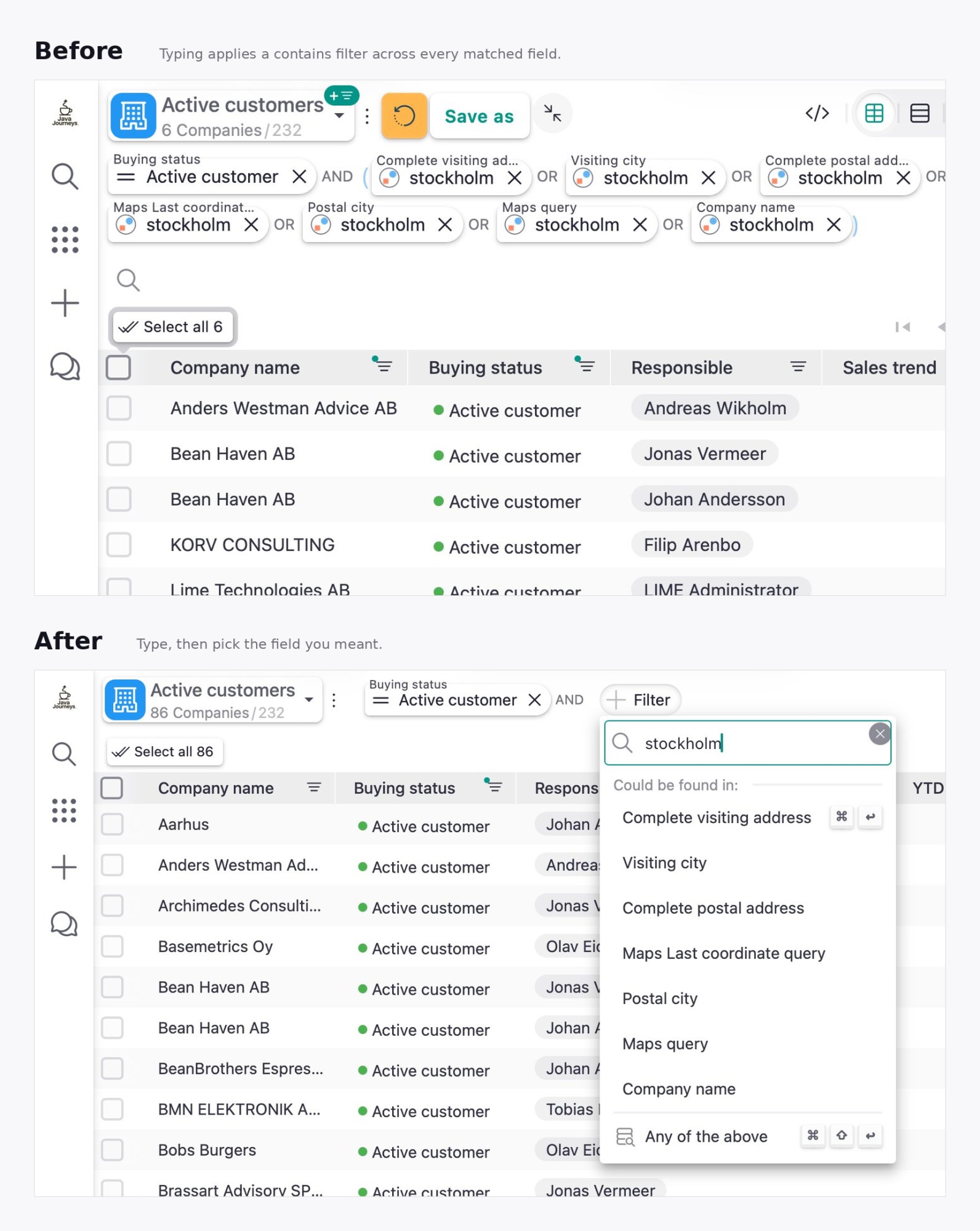
🎯A Better Way to Filter

What's different The search-looking field at the top of your views is now (or soon) a (+ Filter) button. Click it, type the keyword you have in mind β€” say, "stockholm" β€” and we'll show you the fields where that keyword was found. The results list stays open for you to select the field you meant, or pick several of them, or all. Filter gets applied, and updated with every selection you make. Why The old field looked like search but built filters. If that ever felt frustrating, the gap between how the field looked and what it did is exactly what we've fixed. In practice, it applied a filter across every field that contained a match β€” often including fields that aren't shown on cards or in tables. The result was a noisy filter that rarely matched what you actually wanted. The new flow lets you point at the field(s) you meant. What to expect Building a filter now takes one extra step: pick the field, a few fields, or all of them. We think the trade-off is worth it. The rows that remain on screen should be the rows you meant to see, and you should be in control of what's matched. If you want the old behavior β€” match across everything at once β€” Cmd/Ctrl + Shift + Enter still does it in one keystroke. Cmd/Ctrl + Enter picks the top suggestion. If you're used to the old field, this will feel different at first. Give it a day.